Highlight text or take a screenshot — TextExplainer uses AI to break down complex content into clear, simple explanations. Works anywhere on your screen.
Features
Three powerful modes that work across every app on your computer.
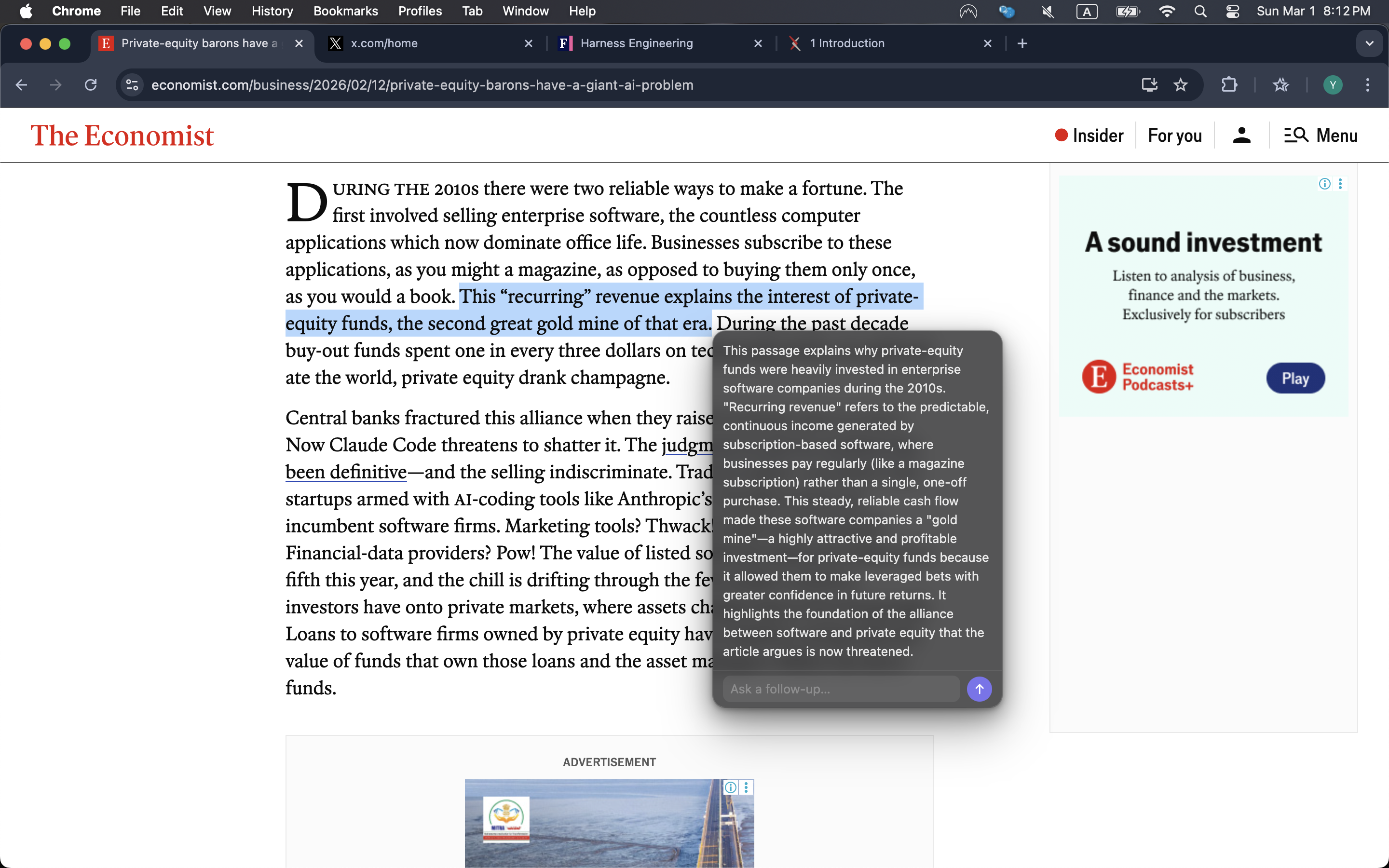
Highlight any text in any app — a research paper, legal document, code snippet, or textbook — and press Alt+X. Get a clear, concise explanation instantly.
Works in browsers, PDFs, code editors, terminals, and more.
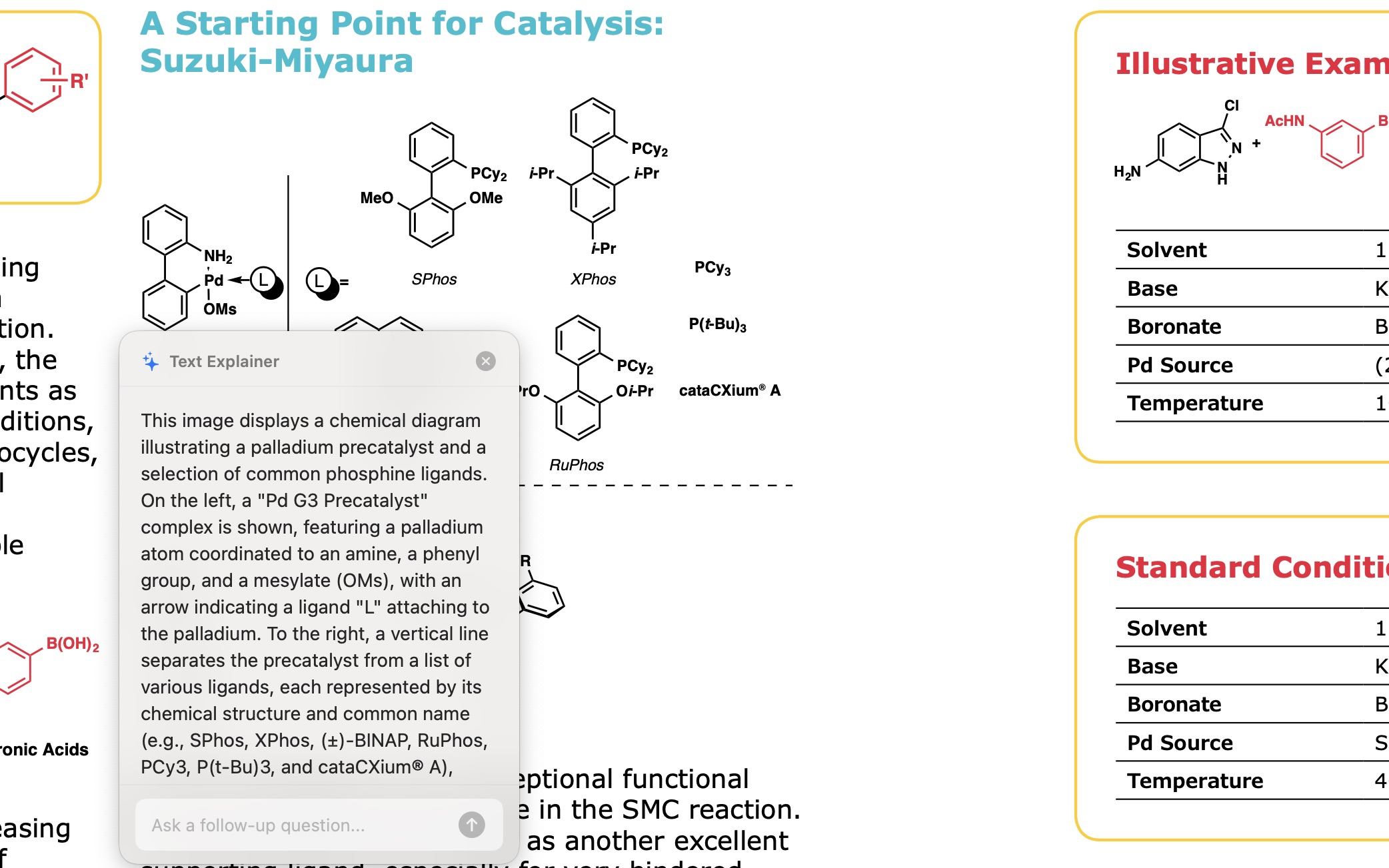
Press Alt+Z and drag to select any area of your screen. TextExplainer will analyze charts, diagrams, equations, images, and UI elements.
Perfect for chemical structures, math notation, graphs, and more.
Press Alt+A to open a prompt and ask any question directly. No need to switch apps or open a browser.
Plus follow-up questions to dig deeper into any topic.
Detects what app you're in for smarter explanations.
Customize how explanations are generated.
Ask follow-up questions to dig deeper.
Runs quietly in your menu bar / tray.
See It In Action
From news articles to chemistry diagrams to math textbooks — TextExplainer handles it all.
Instantly explains complex paragraphs from news sites and magazines.
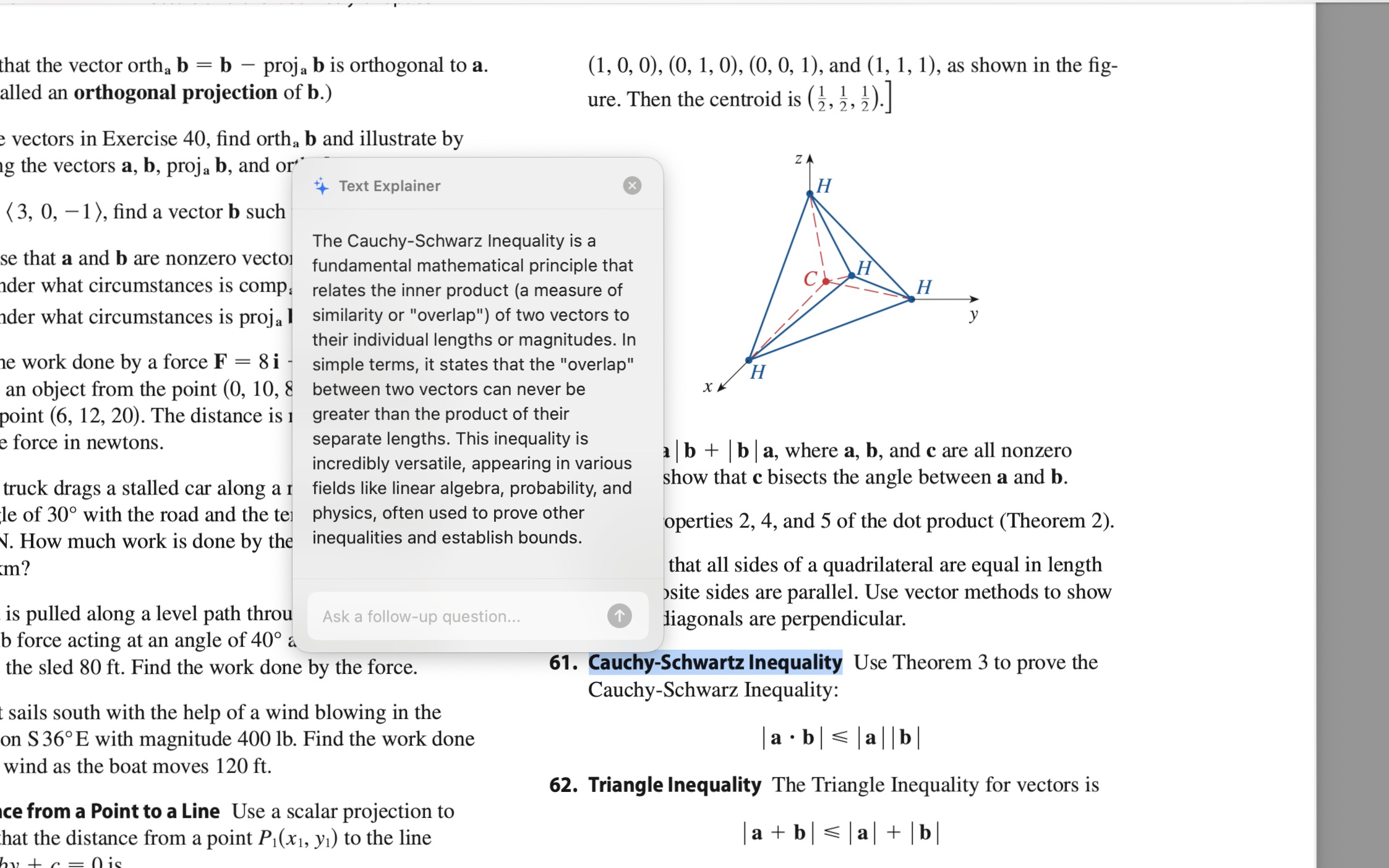
Breaks down mathematical concepts like the Cauchy-Schwarz inequality.
Analyzes chemical structures, reaction mechanisms, and scientific figures.
Download
Choose your platform below. All versions are free to start with 30 explanations per month.
Getting Started
Choose your platform for tailored installation instructions.
Click the download button above to get the installer file.
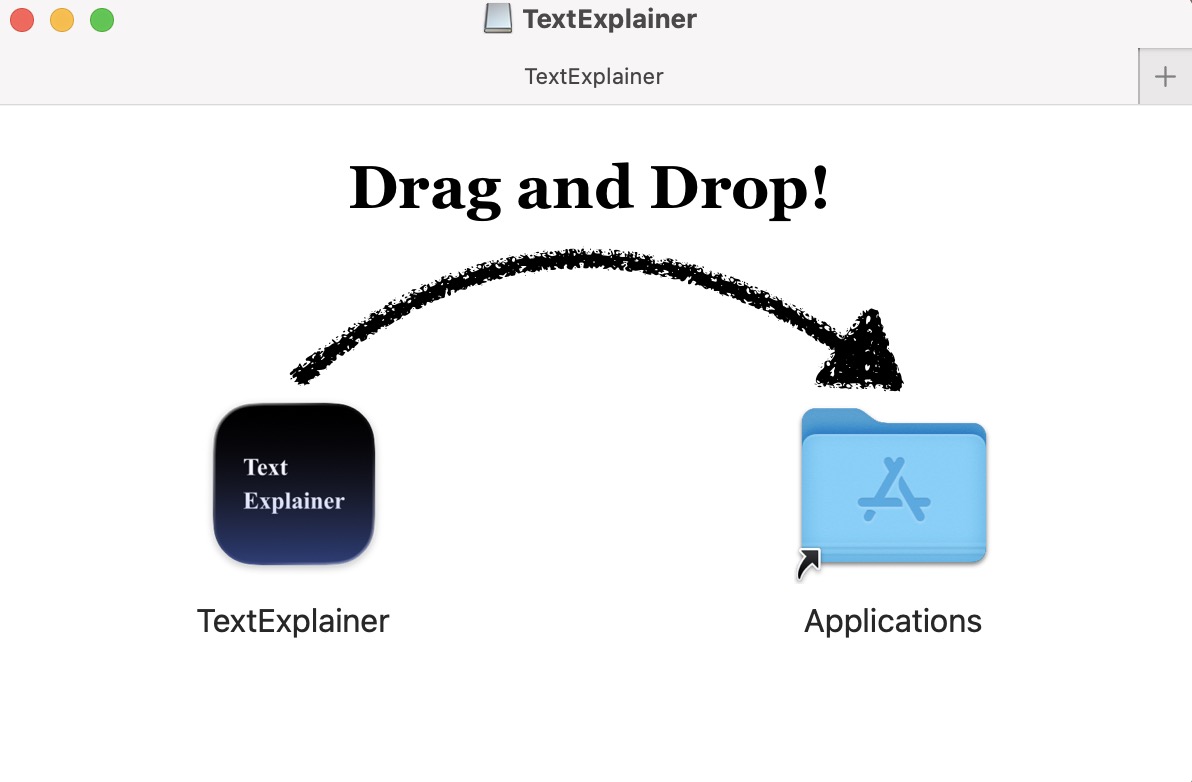
Open the .dmg file and drag the TextExplainer icon into your Applications folder.
Allow Accessibility and Screen Recording access when prompted. This lets TextExplainer read selected text and capture screenshots.
TextExplainer appears in your menu bar. Use Option+X, Option+Z, or Option+A anywhere.
Download TextExplainer-setup.exe from the Windows download button above.
Double-click the downloaded file and follow the setup wizard. If Windows SmartScreen appears, click "More info" then "Run anyway" — the app is safe.
Find "Text Explainer" in your Start Menu, or check the system tray (bottom-right) — the icon appears there automatically.
Use Alt+X to explain text, Alt+Z for screenshots, and Alt+A to ask anything. Enable "Open at Login" in Settings for autostart.
Alternative: Download the portable .zip version if you prefer not to install — just extract and run TextExplainer.exe.
Choose your preferred format below:
sudo dpkg -i textexplainer_1.0.0_amd64.deb
sudo apt install -f # resolves dependencies
textexplainer # or find in app menu
# Install required dependencies first
sudo apt install python3 python3-gi gtk3 xdotool xclip scrot
# Then make executable and run
chmod +x TextExplainer-1.0.0-x86_64.AppImage
./TextExplainer-1.0.0-x86_64.AppImage
Requirements: Python 3.10+, GTK3, X11 session, and xdotool/xclip/scrot. The .deb package installs these automatically; AppImage users should install them manually (see commands above).
Click the "Add to Chrome" button above, or search for "TextExplainer" in the Chrome Web Store.
Confirm the installation when prompted. The TextExplainer icon will appear in your browser toolbar.
Select any text on a webpage and the TextExplainer popup appears with a clear explanation. No hotkeys needed — it works with your mouse selection.
Tip: Pin the extension to your toolbar for quick access. Right-click the extension icon and select "Pin".
Video Guides
Short demos and setup walkthroughs to get you started quickly.
See how TextExplainer works inside your browser.
TextExplainer on macOS — hotkeys, screenshots, and follow-ups.
Step-by-step installation and permission setup on macOS.
Chrome Extension setup guide coming soon
Installation walkthrough for the Chrome extension.
Pricing
No credit card required. Try it free with 30 explanations per month.
Perfect for trying it out
For power users and students